How to Disable IPv6
If you're experiencing VPN connection issues with the error "remote_list_error: current remote server endpoint is undefined", you may need to disable IPv6 on your system. Follow the instructions below for your operating system.
- Windows 10
- Windows 11
- MacOS
Steps for Windows 10
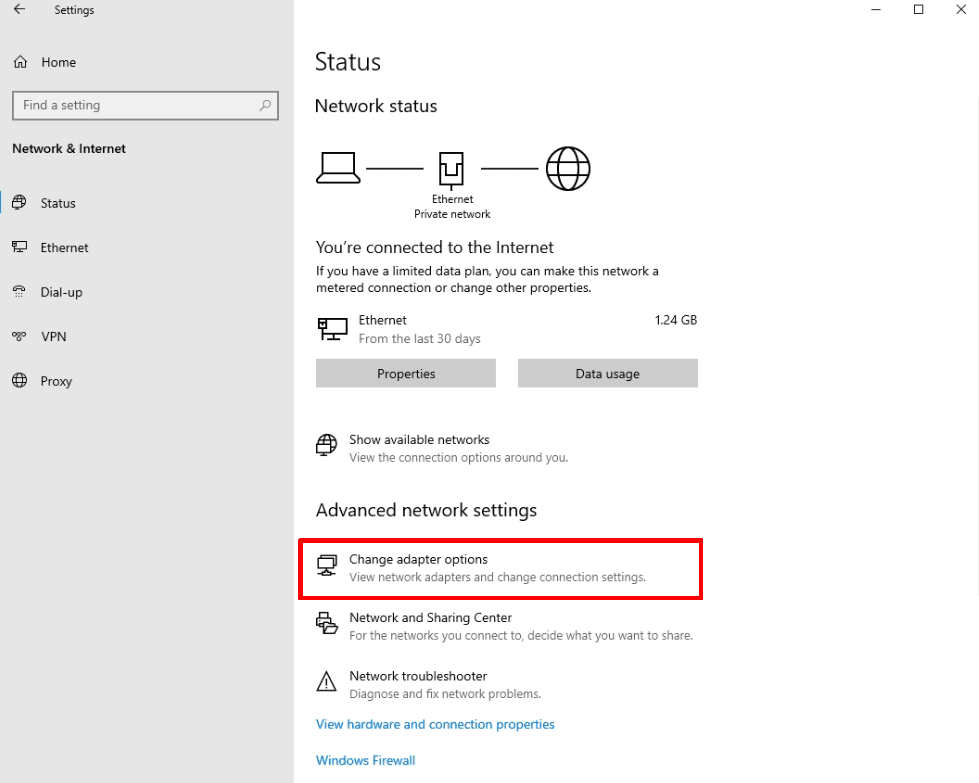
- Go to Start menu → Settings → Network & internet → Status → Change → Advanced network settings → Change adapter options.
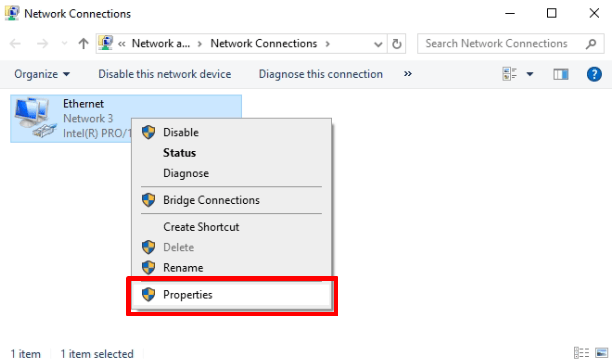
- Right-click on your connection → Properties.
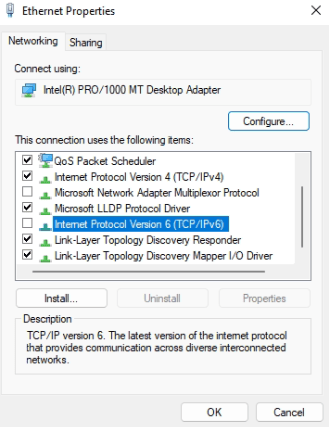
- Ensure Internet Protocol version 6 (TCP/IPv6) is unchecked. Click OK when you’re done.
Steps for Windows 11
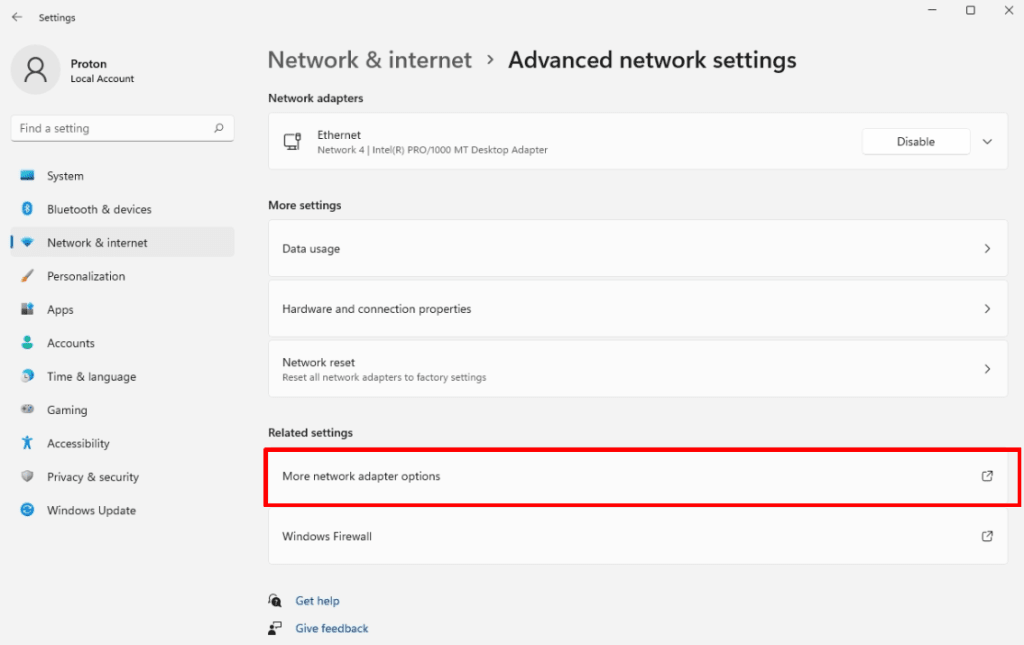
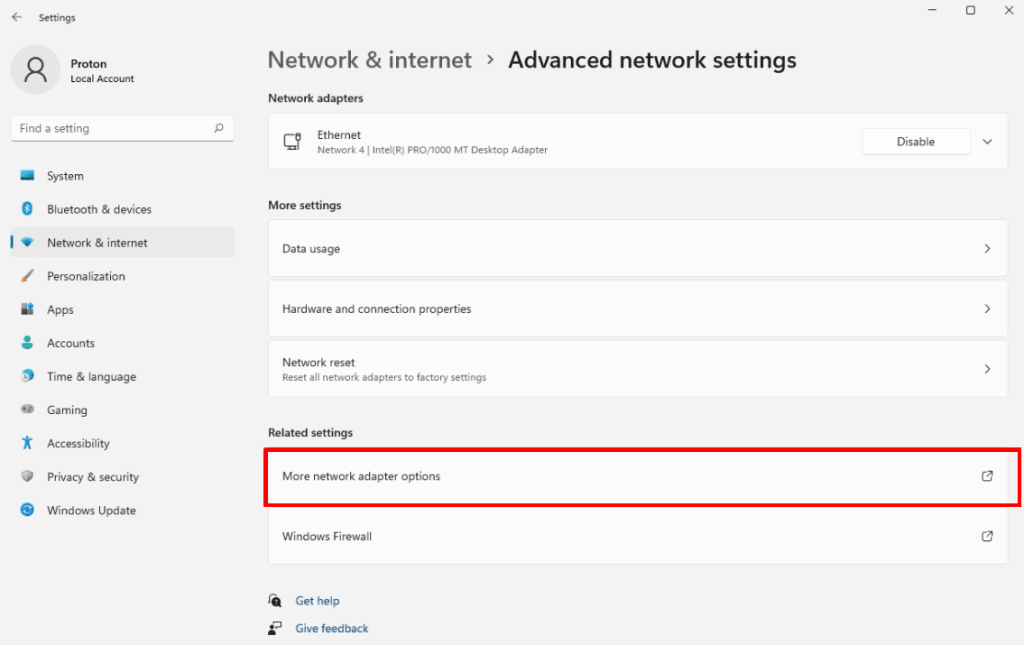
- Open the Settings app and go to Network & internet → Advanced network settings → Related settings → More network adapter options.
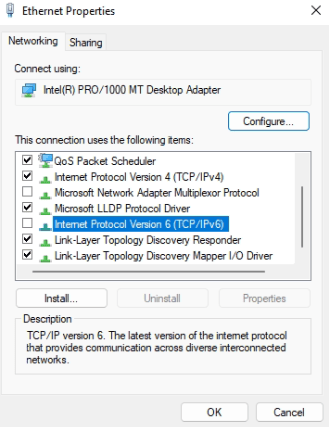
- Right-click on your connection → Properties.
- Ensure Internet Protocol version 6 (TCP/IPv6) is unchecked. Click OK when you’re done.
Steps for MacOS
How to turn off IPv6 in your Mac settings
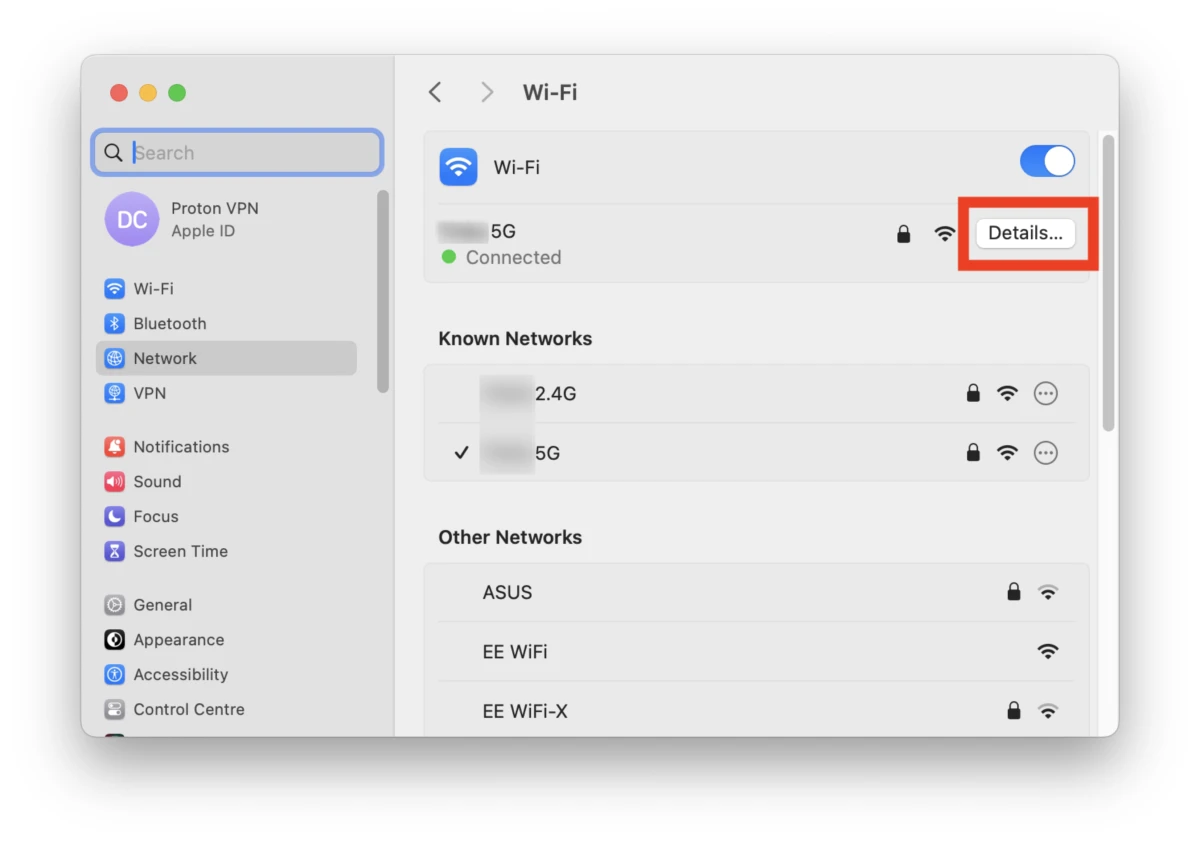
- Open System Settings from Launchpad, go to Network, and click the Details… button next to your network.
- Go to the TCP/IP tab → Configure IPv6 and select Link-Local Only from the dropdown menu.
How to turn off IPv6 using Terminal
This method works on older versions of macOS. Open Terminal from Launchpad.
To disable IPv6 on your WiFi connection, enter:
networksetup -setv6off Wi-Fi
To disable IPv6 on your Ethernet (wired) connection, enter:
networksetup -setv6off Ethernet
How to verify that you’ve turned off IPv6
Visit an IP scanner (without a VPN connection). If you see a short IPv4 address that looks something like 185.159.159.142, then IPv6 is disabled. If you see a long hexadecimal number that looks something like 2001:db8::8a2e:370:7334, you’re still connecting over IPv6.
Important Notes
- After disabling IPv6, try reconnecting to the VPN
- If you still experience issues, contact your IT support
- You can re-enable IPv6 by following the same steps and enabling the option instead