Guide: Install Office 365
How to Install Microsoft Office 365 for Business
This guide will walk you through the steps to install the official version of Microsoft Office 365 for Business on your computer. Please follow these instructions carefully to ensure a smooth installation and activation process.
Step 1: Important Pre-installation Requirement
Before you begin the new installation, it is critical to uninstall any previous versions of Microsoft Office that may be on your computer (e.g., Office 2016, Office 2019). This step prevents potential software conflicts and ensures the new version runs correctly.
- To do this, go to Control Panel > Programs > Uninstall a program, find your old Microsoft Office suite in the list, select it, and click Uninstall.
Step 2: Download the Office 365 Installer
Once you have uninstalled any old versions, proceed with the following steps to download the official installer.
- Navigate to the Office 365 Portal: Open your web browser and go to the following address:
- Sign In: Use the Office 365 account credentials (email address and password) provided to you by the IT Department.
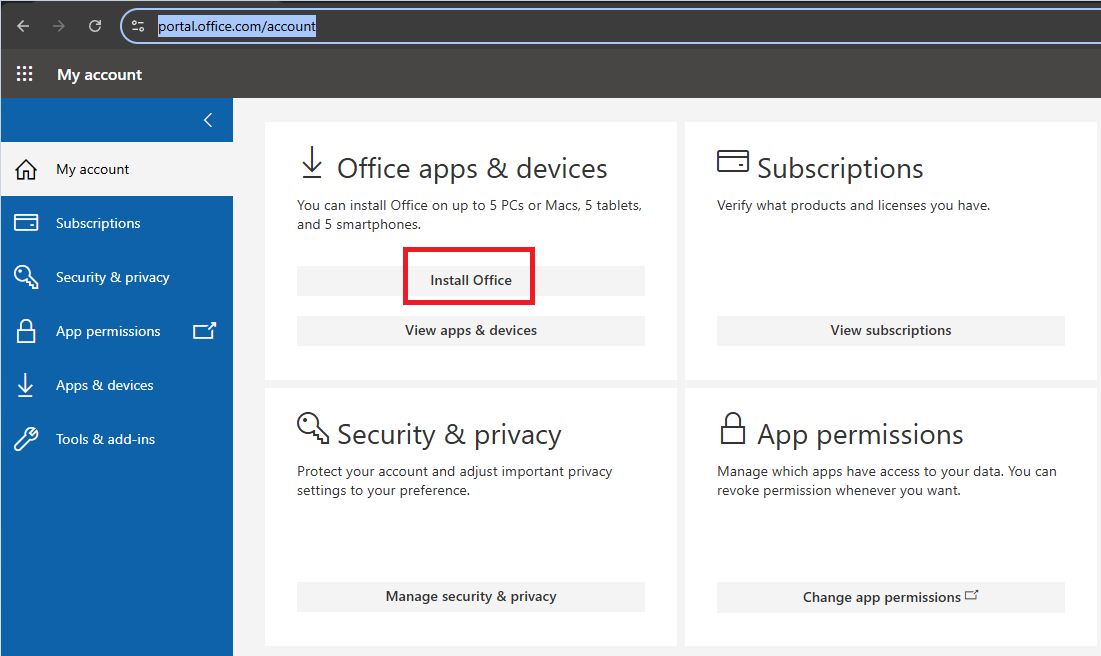
- Download the Installer: After successfully logging in, locate and click the Install Office button. This will download the official setup file to your computer.
Step 3: Install and Activate Office 365
Now, you will run the installer and activate the software.
- Run the Installer: Locate the downloaded file (usually in your 'Downloads' folder) and double-click it to begin the installation. The process will run automatically and may take several minutes.
- Activate Office:
- Once the installation is complete, a pop-up window should appear asking you to activate Office. Please enter the same account credentials provided by the IT Department.
- If no activation window appears automatically, simply open any Office application (e.g., Word, Excel). The activation prompt will then be displayed.
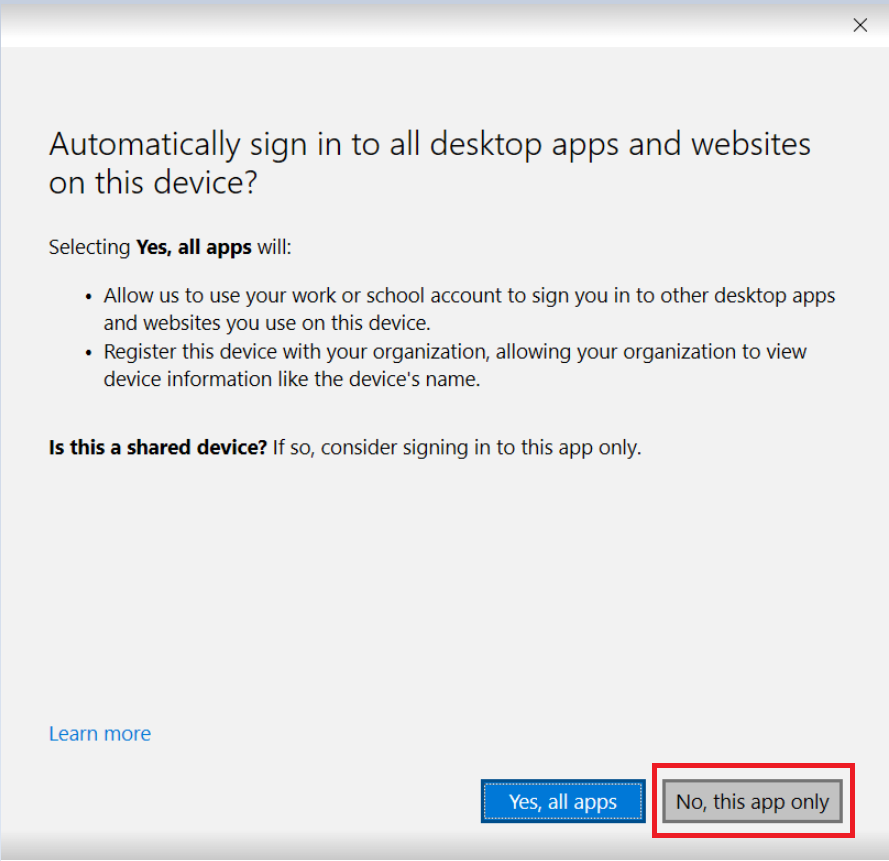
- Crucial Final Step: After entering your account details, you will see a screen asking if you want to "Use this account everywhere on your device." On this screen, you must select the option "No, this app only." This ensures the account is only linked to your Office applications and not other Microsoft services on your computer.
Your Office 365 suite is now installed, activated, and ready to use.
If you encounter any issues during this process, please do not hesitate to contact the IT Helpdesk for assistance.