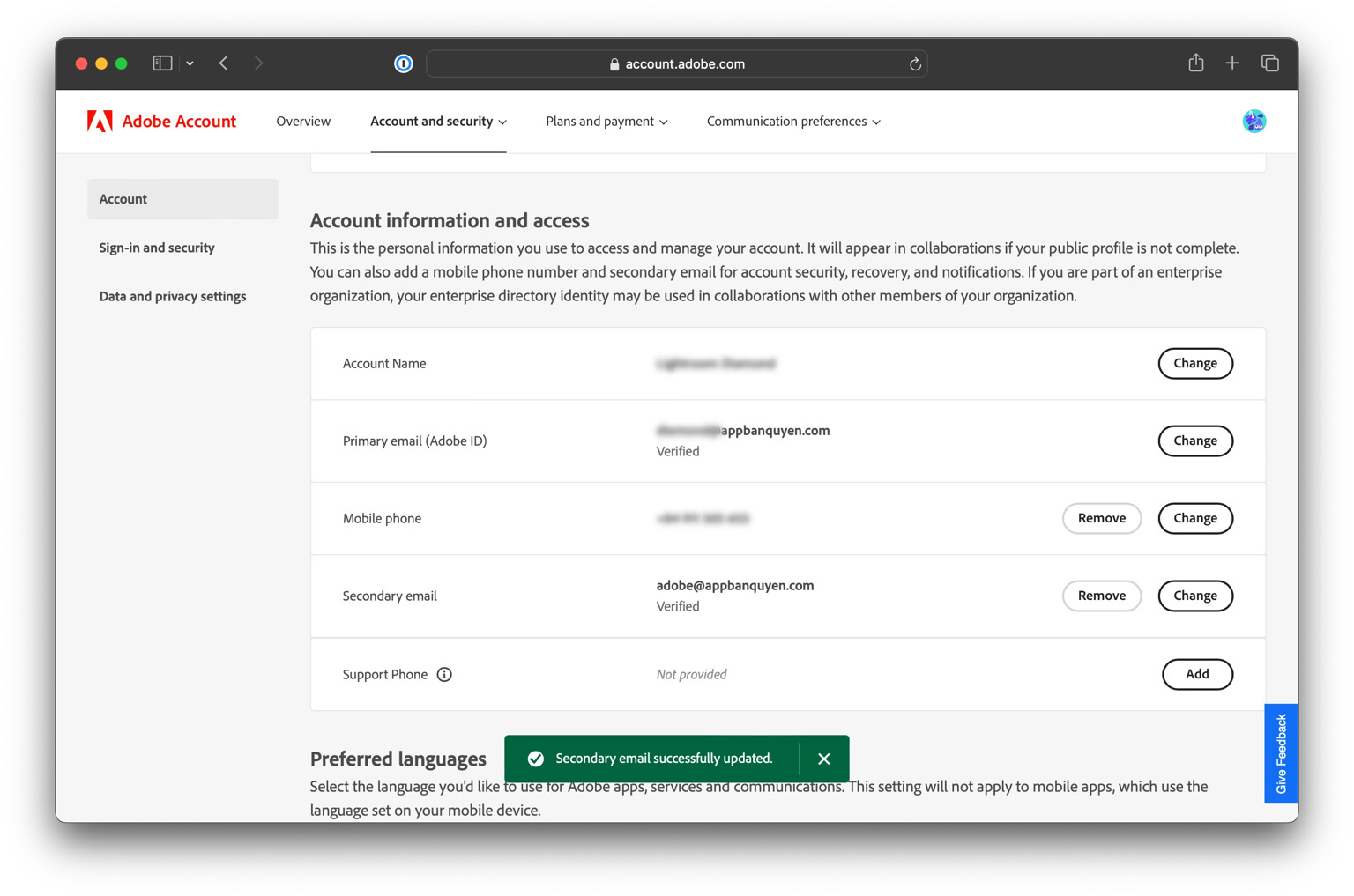
Guide: Adobe Secondary Email
info
Purpose of This Guide
This guide explains how to add a secondary email to an Adobe account. Often, Adobe accounts are registered with an IT team's email address. This creates an issue during login, as the authentication code (OTP) is sent to the IT team, preventing the end-user from receiving it directly. By adding your own email as a secondary address, you can receive the OTP yourself, making the login process much smoother and more independent.
How to Add a Secondary Email and Change Your Password
1. Sign In to Your Account
info
- Go to adobe.com and sign in with your account credentials.
2. Add a Secondary Email
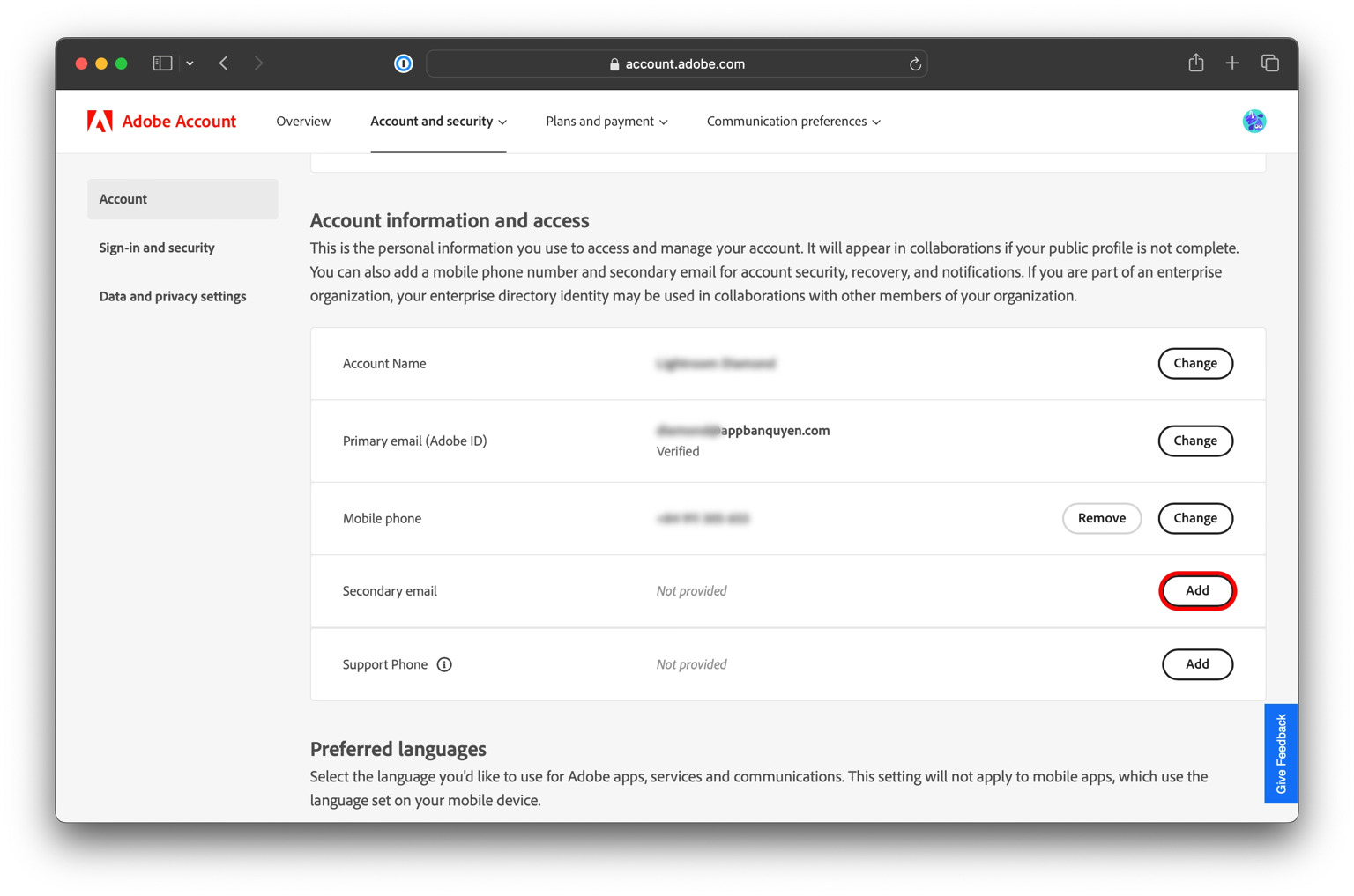
- Step 1: After logging in, navigate to your profile page by clicking this link: https://account.adobe.com/profile. Find the Account and access section and locate the Secondary email option. Click "Add".
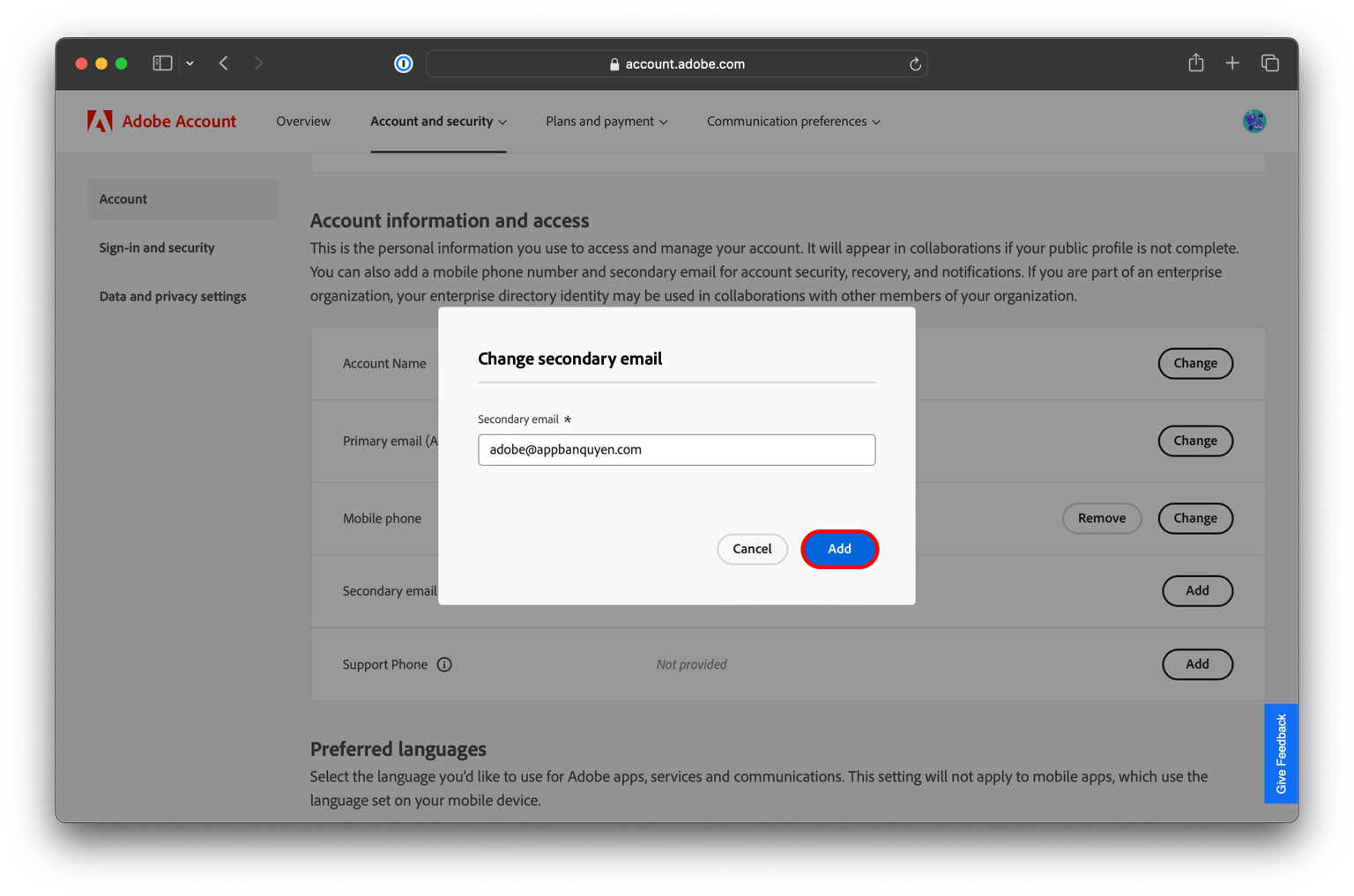
- Step 2: Enter the your company email address you want to use as your secondary email and click "Add".
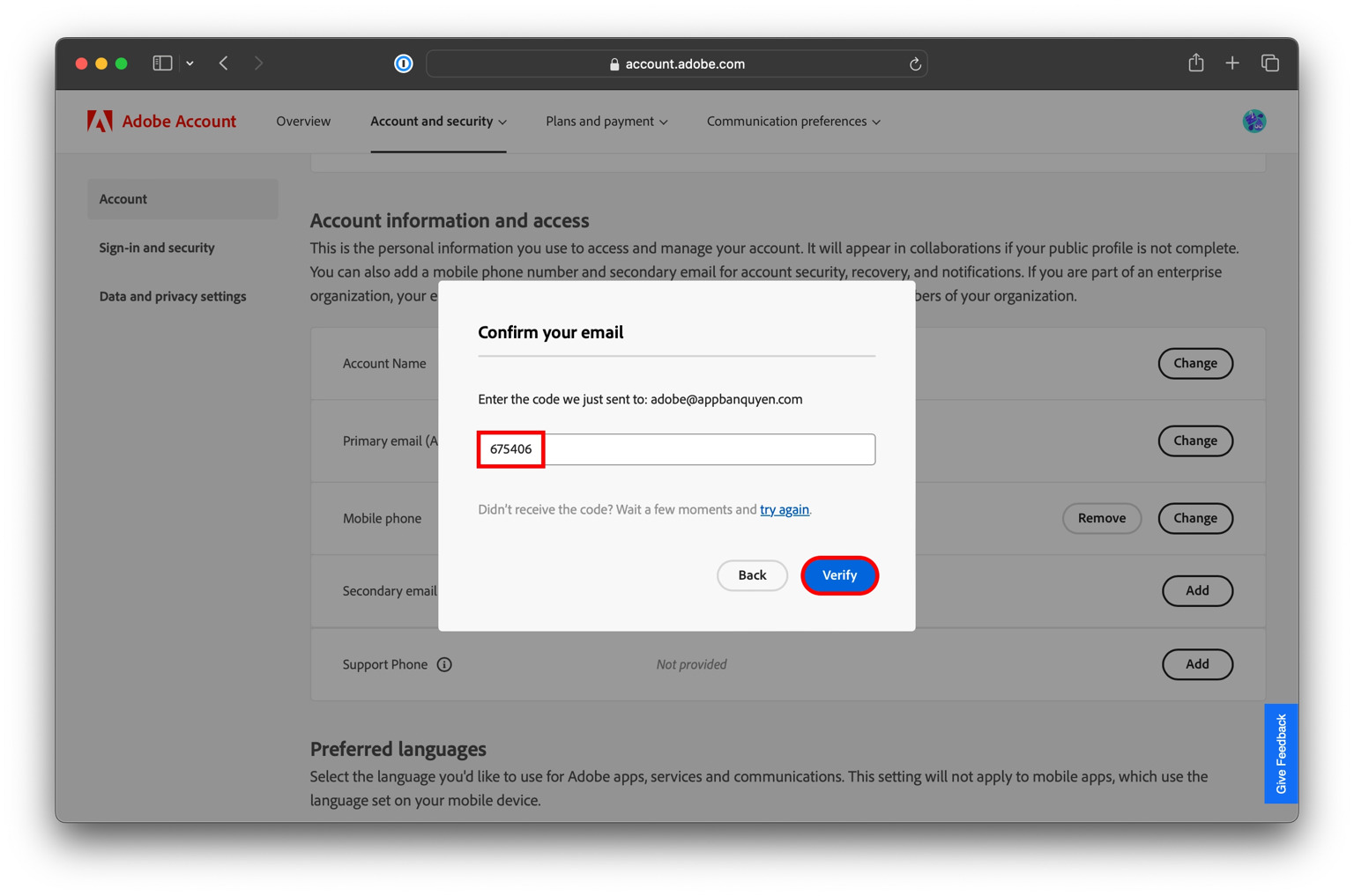
- Step 3: Check the inbox of the email address you just added. Adobe will send a 6-digit verification code. Enter this code into the required field on the Adobe website and click "Verify".
- Step 4: Once verified, your secondary email will be successfully added to the account. From now on, authentication codes can be sent to this email, allowing you to log in without assistance.