NetBird VPN Connection Guide
Gear Games is replacing the previous OpenVPN solution with NetBird.
NetBird is a company self-hosted VPN. You connect through one management portal — no need to import separate profiles for each office.
Management Server
Always use the Self-hosted option and this Management Server URL. Do not connect to NetBird Cloud.
Step 1: Sign in to the NetBird portal
- Open https://netbird.geargames.net/ in your browser.
- Select Continue with Google.
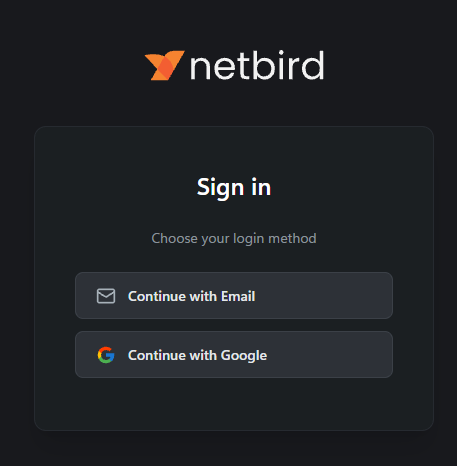
- Sign in with your company email account.
- After signing in, the Add new device to your network screen appears.
Step 2: Install NetBird on your device
On the portal, choose the tab that matches your device, then follow the steps below.
Pick your platform:
Windows
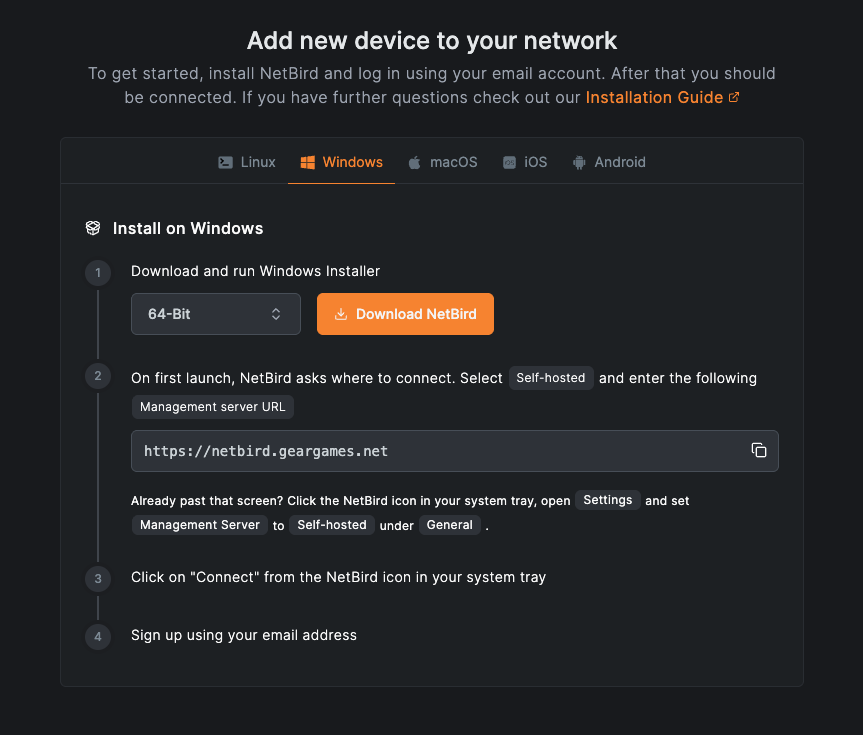
- Select the Windows tab.
- Click Download NetBird (64-Bit) and run the installer.
- On first launch, NetBird asks where to connect:
- Select Self-hosted
- Enter Management server URL:
https://netbird.geargames.net
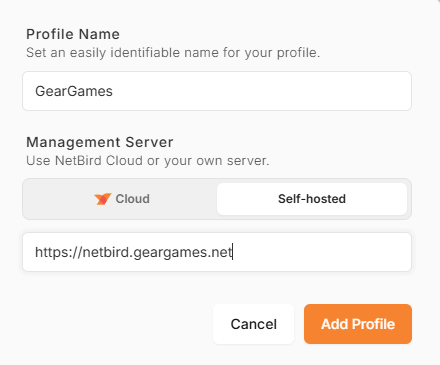
Already past that screen? Click the NetBird icon in the system tray → Settings → under General, set Management Server to Self-hosted and enter the URL above.
- Click Connect from the NetBird icon in the system tray.
- Sign in with your company email when prompted.
macOS
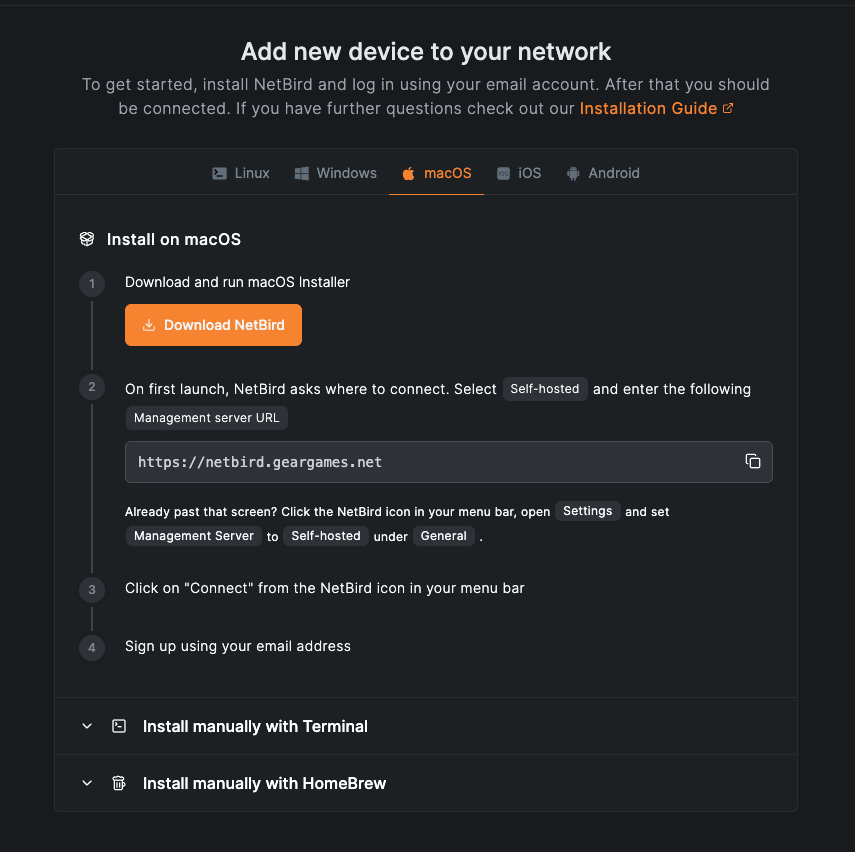
- Select the macOS tab.
- Click Download NetBird and run the installer.
- On first launch, NetBird asks where to connect:
- Select Self-hosted
- Enter Management server URL:
https://netbird.geargames.net
Already past that screen? Click the NetBird icon in the menu bar → Settings → under General, set Management Server to Self-hosted and enter the URL above.
- Click Connect from the NetBird icon in the menu bar.
- Sign in with your company email when prompted.
iOS
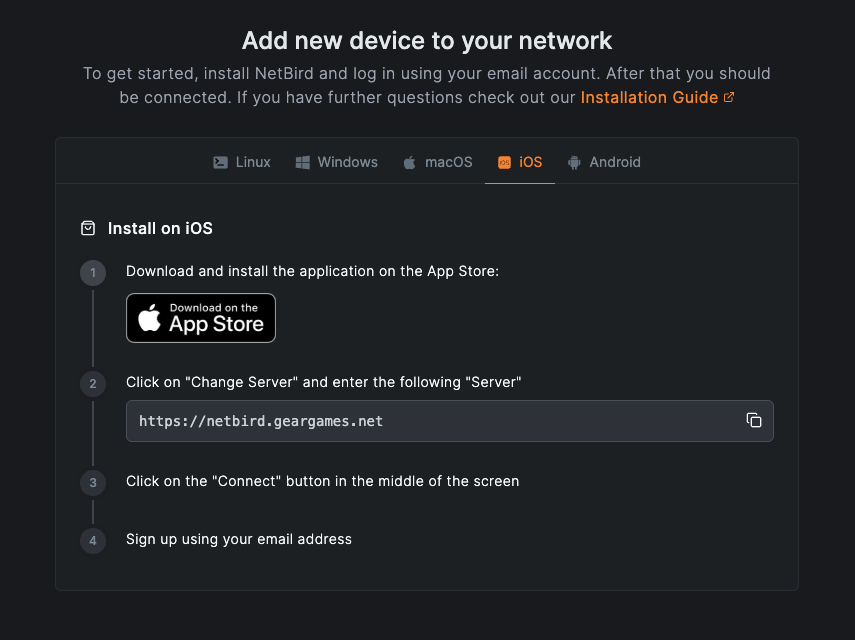
-
Select the iOS tab.
-
Download and install NetBird from the App Store.
-
Open the app → tap Change Server and enter:
https://netbird.geargames.net -
Tap Connect.
-
Sign in with your company email when prompted.
-
Continue to Step 3 (required for phones).
Android
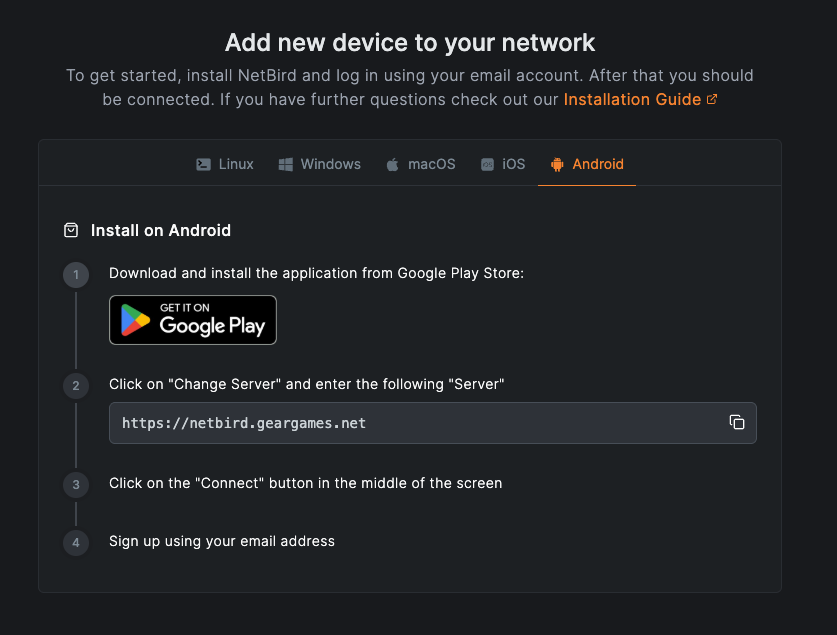
-
Select the Android tab.
-
Download and install NetBird from Google Play.
-
Open the app → tap Change Server and enter:
https://netbird.geargames.net -
Tap Connect.
-
Sign in with your company email when prompted.
-
Continue to Step 3 (required for phones).
Step 3: (Mobile only) Disable Force Relay Connection
On iOS and Android, you must turn off Force relay connection. Desktop (Windows / macOS) users can skip this step.
- Open the NetBird app.
- Go to Settings → tap Advanced.
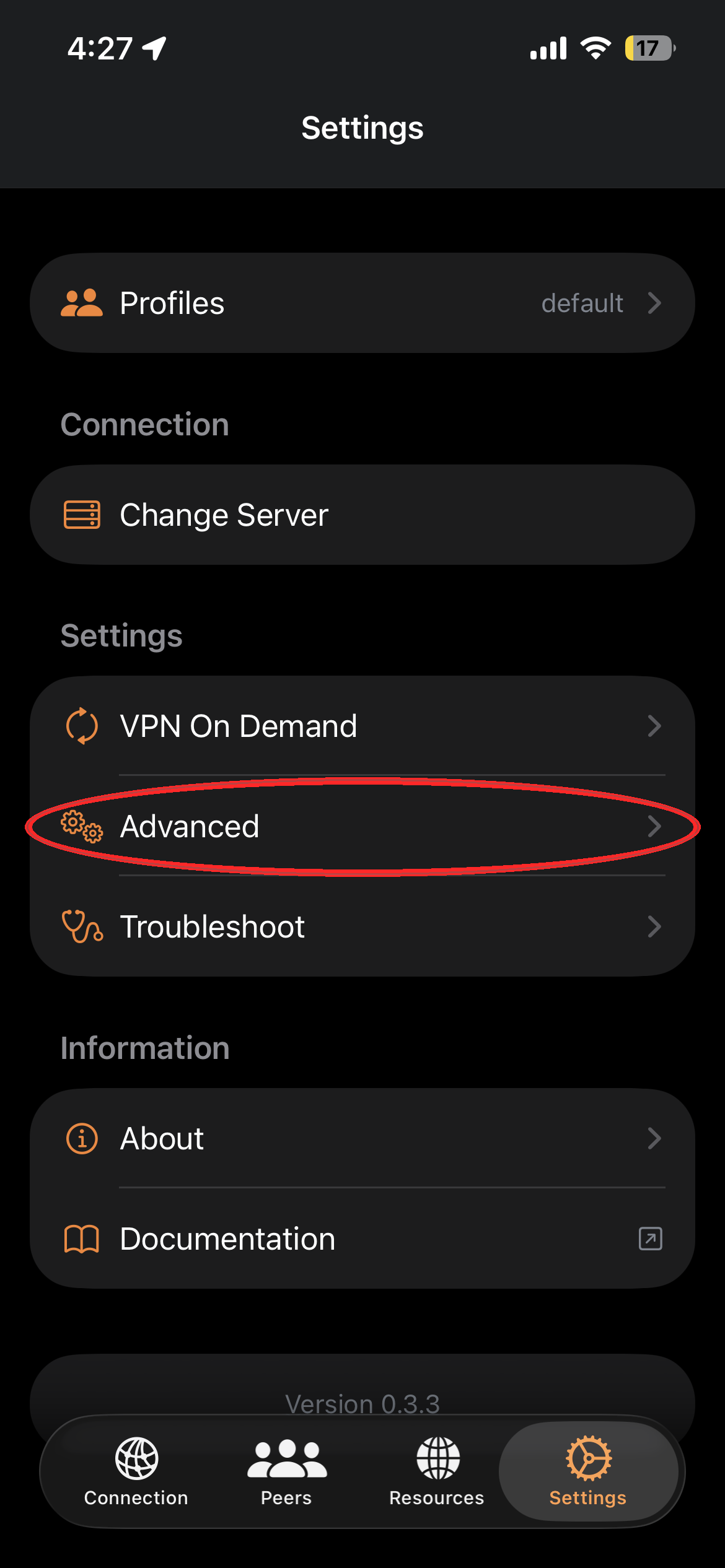
- Turn off Force relay connection.
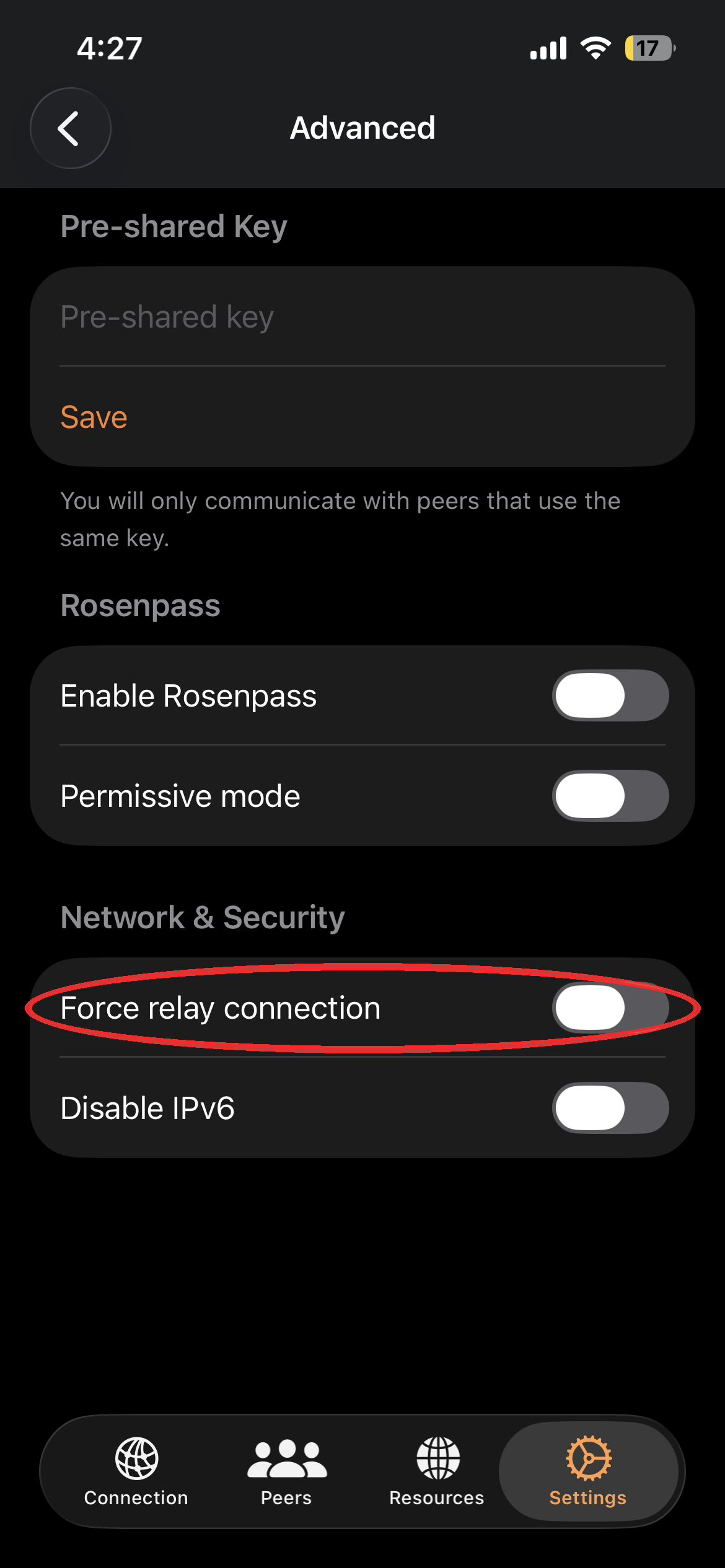
If Force relay connection stays enabled on your phone, VPN performance may be poor or some internal services may not work correctly.
Important Notes
- NetBird replaces OpenVPN — use NetBird for new VPN connections going forward
- Always set Management Server to Self-hosted:
https://netbird.geargames.net - Sign in only with your company Google / email account
- On phones, remember to disable Force relay connection
- Contact IT support if you experience connection issues
- Keep your credentials secure and don't share with others
- Use VPN only for work-related activities
FAQ
Unable to connect / authentication fails
- Confirm you signed in with your company email (Continue with Google)
- Confirm Management Server is Self-hosted and set to
https://netbird.geargames.net - Reinstall the NetBird app and add the profile again
Connected but cannot access internal services
- On mobile: check that Force relay connection is turned off (Settings → Advanced)
- On desktop: disconnect and reconnect NetBird
- If the issue persists, contact IT support
NetBird asks for Cloud instead of Self-hosted
Open NetBird Settings → set Management Server to Self-hosted → enter https://netbird.geargames.net → save, then connect again.
Should I still use OpenVPN?
NetBird replaces the previous OpenVPN setup. Prefer NetBird unless IT asks you to keep using OpenVPN for a specific case. See the OpenVPN guide if needed.