Guide: Secure Batch Print
How to Print Many Files Without Exposing Their Names
When you print from Word, Excel or Acrobat, the real file name (for example Payroll Sep - John Smith.docx) is saved in the printer's job log, the print queue and system logs. Anyone who can see these logs knows what you printed.
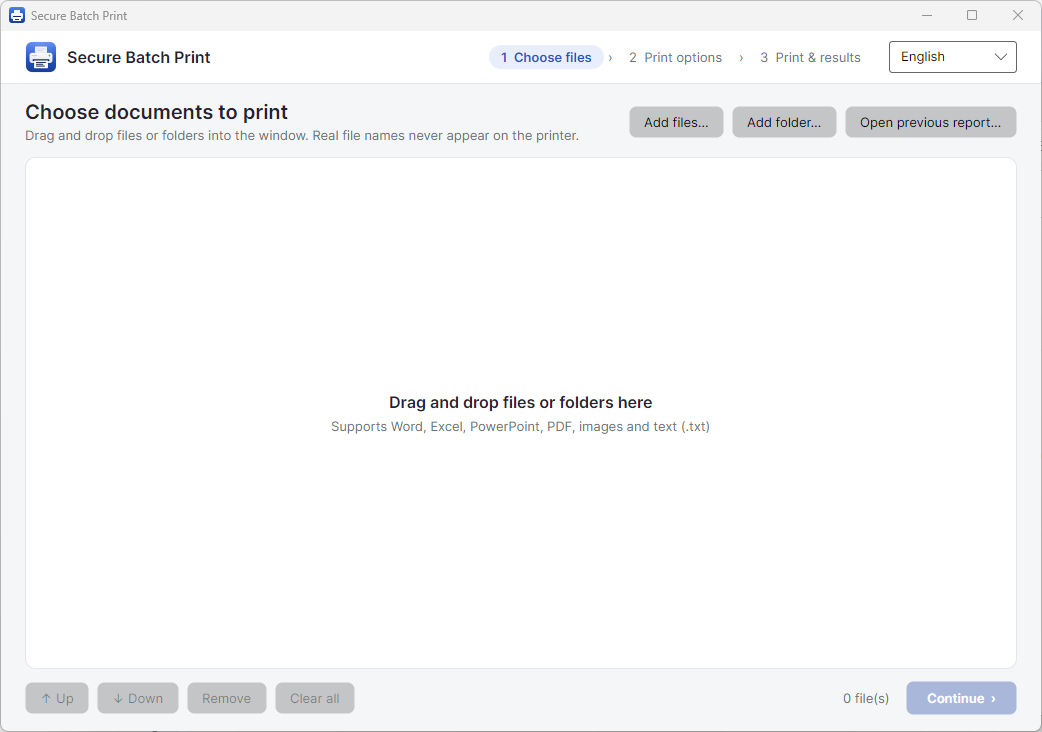
Secure Batch Print is a desktop app for Windows and macOS that prints many files at once and hides the real file names. The printer only sees a neutral name such as Doc-7F3A2C-001.docx.
Purpose: Learn how to download the app, print a batch of files, and understand the results.
Download
| Device | Download |
|---|---|
| Windows 10/11 | SecureBatchPrint-windows-x64.exe |
| Mac with Apple chip (M1/M2/M3/M4) | SecureBatchPrint-macos-arm64.zip |
Windows: the app is a single .exe file. Double-click it to run. No installation needed.
macOS: unzip the file and drag Secure Batch Print.app into Applications.
If macOS says the app cannot be opened, open Terminal and run this command once:
xattr -dr com.apple.quarantine "/Applications/Secure Batch Print.app"
The app is in English by default. To switch to Vietnamese, use the language box in the top-right corner. The app remembers your choice.
How to Use
Step 1: Add Files
- Drag and drop files or folders into the app window, or click Add files….
- You can change the print order in the list.
- Files that are not supported are marked in the list right away.
You can also drag files onto the app icon to open the app with those files already added.
Step 2: Choose Print Options
Choose:
- Printer
- Number of copies
- 1-sided or 2-sided printing
- Paper size
Paper size only applies to PDF and image files. Word, Excel and PowerPoint files print with the paper size set inside the document.
Step 3: Print and Check the Results
Click print. The app sends the files one by one and watches the print queue.
If the printer has a problem (paper jam, out of paper, offline, cover open, or a job is stuck for more than 10 minutes), the batch pauses automatically. The screen shows which file may have printed only partly.
- Fix the printer, then click Resume printing, or
- Click Stop & export report.
Step 4: Read the Report
A report (HTML and CSV) is saved automatically after each file, in:
Documents → SecureBatchPrint → Reports
This report is the only place that shows the real file names. It stays on your computer. If the app closes suddenly, the report is still there.
Each file has one of these statuses:
| Status | Meaning |
|---|---|
| Sent to printer | The printer received and finished the job. (The app cannot confirm the paper actually came out.) |
| Needs checking | The job was sent, but the printer had a problem. Some pages may be missing. Check your printout. |
| Error – not printed | Error before sending (password-protected file, damaged file…). Safe to print again. |
| Not printed | The batch stopped before this file. |
| Skipped | Format not supported, or the required software is not installed. |
Step 5: Reprint Failed Files
- Click Create new batch from unprinted files to make a new batch with only the files that failed, were not printed, or need checking.
- To continue from an older batch, click Open old report… and choose the CSV report of that batch.
Supported Formats
| File type | Windows | macOS |
|---|---|---|
| doc, docx, rtf, odt, txt | Microsoft Word | Microsoft Word, or Pages |
| xls, xlsx, csv, ods | Microsoft Excel | Microsoft Excel, or Numbers |
| ppt, pptx, odp | Microsoft PowerPoint | Microsoft PowerPoint, or Keynote |
| pdf, png, jpg, bmp, gif, tif | Printed by the app itself | Printed by the system (no extra software) |
| Other formats | Printed with the default app, if it supports printing | Not supported |
Office files need Microsoft Office (or Pages / Numbers / Keynote on Mac) installed on your computer. The app opens them in the background. Macros are blocked, and the files are not added to your Office "Recent" list.
Known Limitations
The app hides the file name only. Your user account name and computer name still appear in the printer log.
- Office prefix: jobs from Office show the app name in front, for example
Microsoft Word - Doc-…. The file name part is still the neutral name. - PDF printing is slower: PDFs are printed as 300 dpi images. Quality is fine for text, but jobs are larger and print more slowly than normal.
- 2-sided printing for Office files: the app changes your printer setting for a moment, then sets it back. Some printer drivers may ignore this. If so, the Notes column in the report will say so.
- Password-protected files show Error – not printed. The app does not ask for passwords. Remove the password first, then print again.
- Default printer changes (Windows): if "Let Windows manage my default printer" is turned on, Windows may change your default printer to the one you just used. This is Windows behavior, not the app.
- macOS version is in beta. If something does not work on your Mac, please create a Jira ticket.
Need Help?
If you have any problems, create a Jira request for IT.
Not sure how to create a ticket? See the Jira ticket guide.