Fix Mac Password Out of Sync Issue
(Occurs when your Mac login password does not match your Google password)
Method 1 - Sync Using Gear Games Self Services App

Open the Gear Games Self Services application
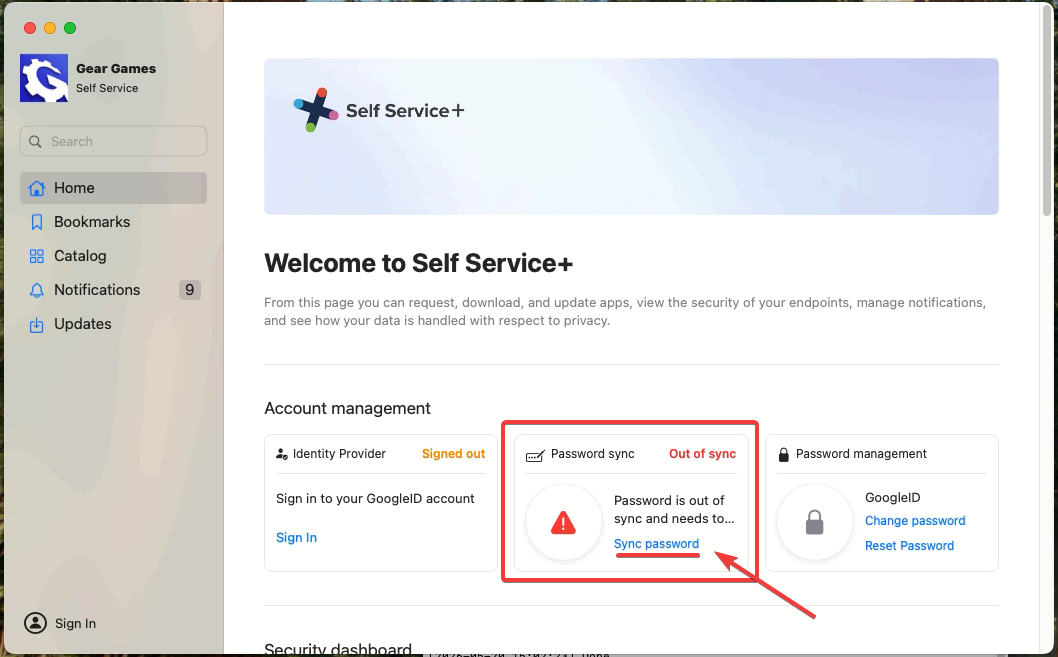
Click Sync password
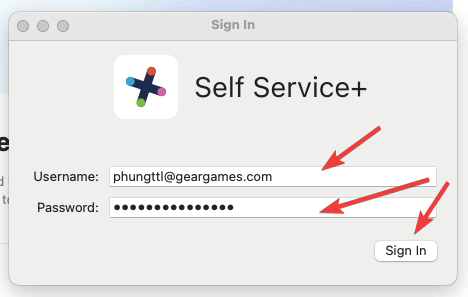
Enter your Google account and password, then click Sign In
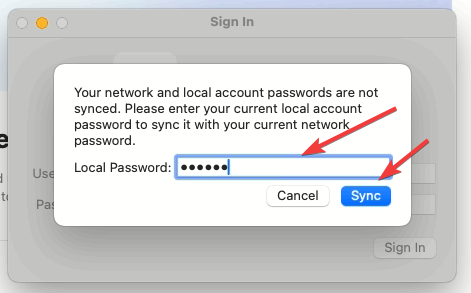
Enter your local password (the password you currently use to log in to your Mac) and click Sync
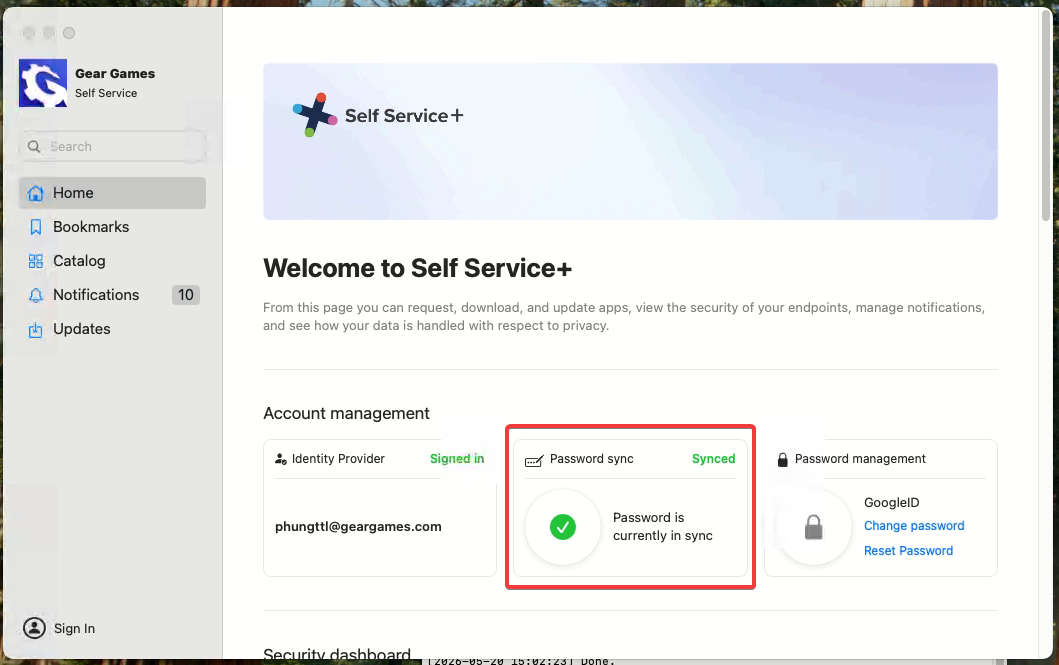
Then return to the Gear Games Self Services app, if it reports synced, it is successful. If not, please try again one more time or contact IT for support.
From now on, you will use only one password—your Google password—to log in to your Mac
Method 2 - Sync Using Gear Games Self Services menu bar Icon
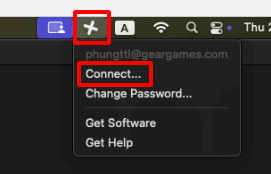
Click the Gear Games Self Services icon in the menu bar and select Connect…
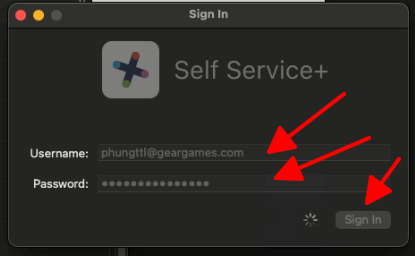
Enter your Google account and password, then click Sign In
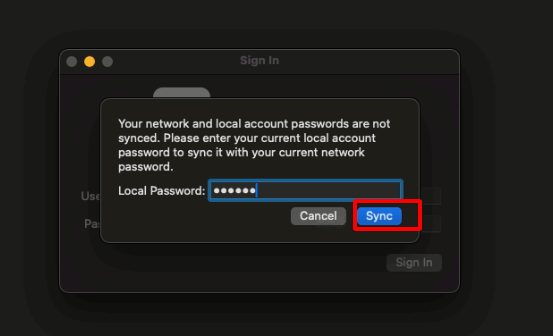
Enter your local password (the password you currently use to log in to your Mac) and click Sync

After that, please open Gear Games Self Services and check the synchronization status
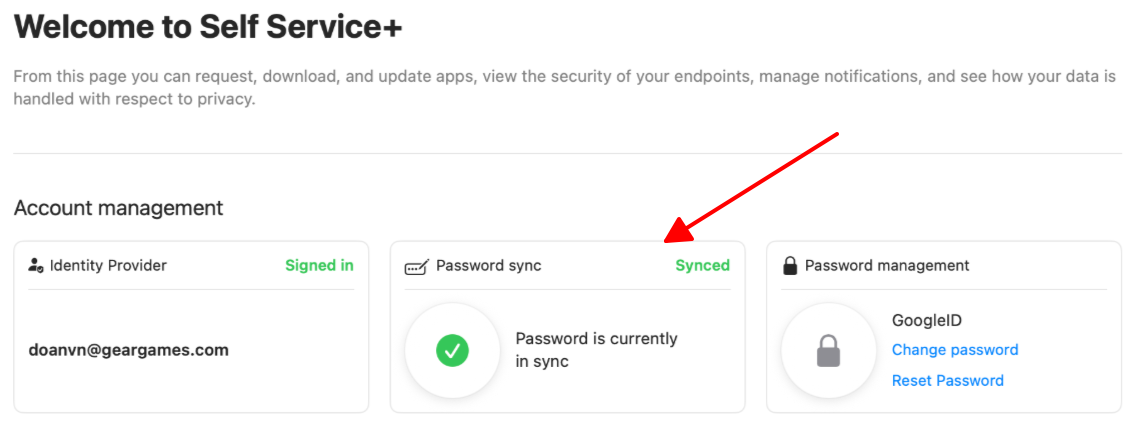
If the status shows Synced, then it was successful. If not, please try again one more time or contact IT for support.
From now on, you will use only one password—your Google password—to log in to your Mac