Software Installation Request Guide
info
For Employees, Developers, and QA Testers
To keep company devices secure, software installation is controlled by the IT team.
If you need to install an application that is not available in the Company Portal, please follow the process below.
1. Check the Company Portal first (required)
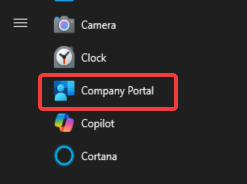
- Before requesting software, please check the Company Portal.
- Steps:
info
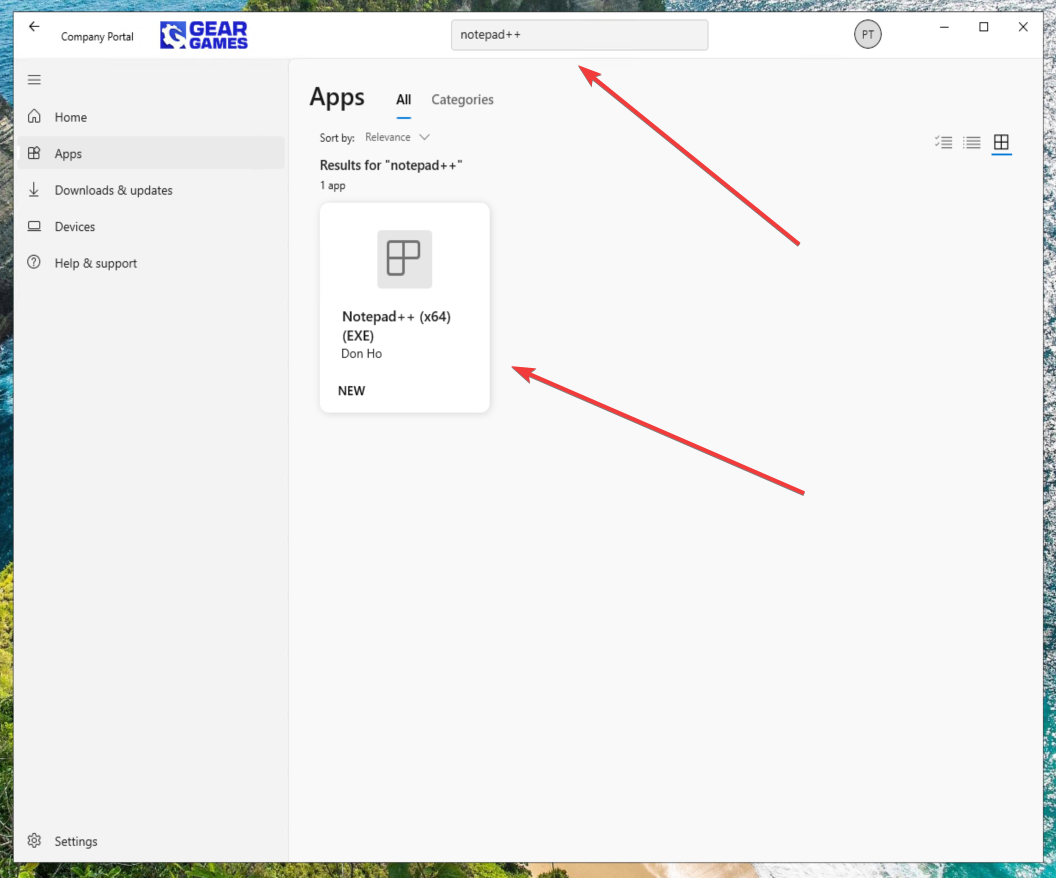
- Open Company Portal
- Search for the application
- Click Install if available
- If the application is listed there, no approval is needed.
2. When you need to submit a request
- Submit a request if:
- The software is not in Company Portal
- You received software from a customer
- You need a tool for development or testing
- You downloaded an installer but Windows blocks it
- Typical examples:
- Customer game builds
- Testing tools
- SDK installers
- Debugging tools
- Utility applications
3. Prepare the file for submission
- Before submitting a request, prepare the following:
- Required information: Please include:
- Application name
- Version
- Vendor / customer
- Purpose of the software
- Who requires it (individual / team)
- Example:
- Application: CustomerGame.exe
- Version: 1.2.4
- Vendor: ABC Studio
- Purpose: QA regression testing
- Requested by: QA Team
4. Upload the installer file
- If any, give the download link
- If not, upload the installer to the IT software review location: Internal file portal (Google Drive)
5. Submit a ticket to IT
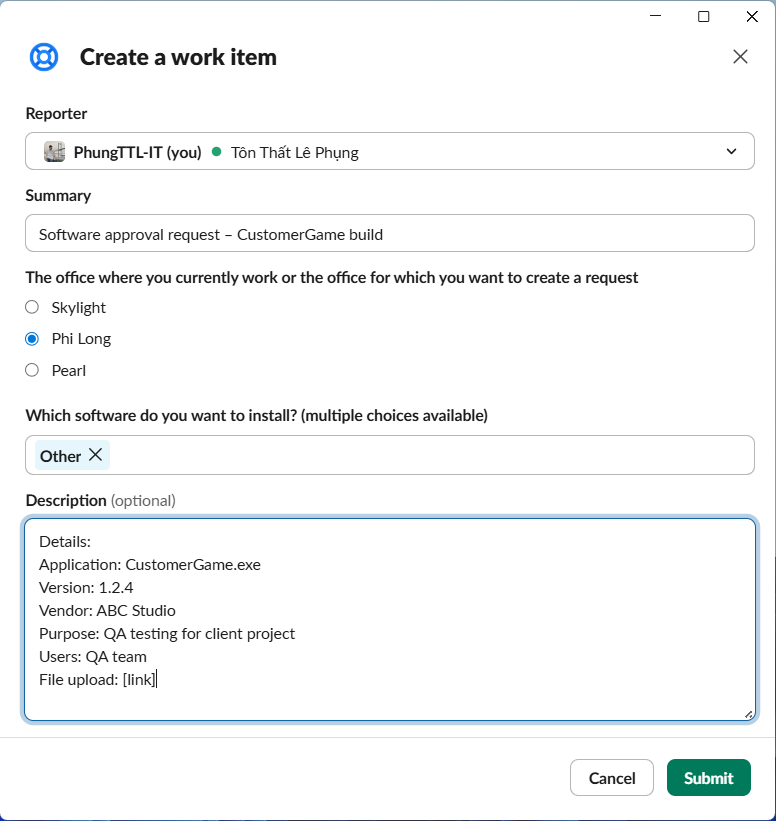
- Create a request ticket containing:
- Required information: Include:
- Application name
- Version
- Vendor or source
- Purpose of installation
- Download link or uploaded file
- Team requesting the software
- Example ticket:
- Title: Software approval request – CustomerGame build
- Details:
- Application: CustomerGame.exe
- Version: 1.2.4
- Vendor: ABC Studio
- Purpose: QA testing for client project
- Users: QA team
- File upload: [link]
6. Security review process
- The IT & Security team will perform checks including:
- Malware scanning
- Digital signature verification
- Vendor reputation check
- Security risk assessment
- Compatibility verification
- If approved: The software will either be:
- Added to Company Portal, or
- Approved for secure installation on request
7. Installation after approval
Once approved, one of the following will happen:
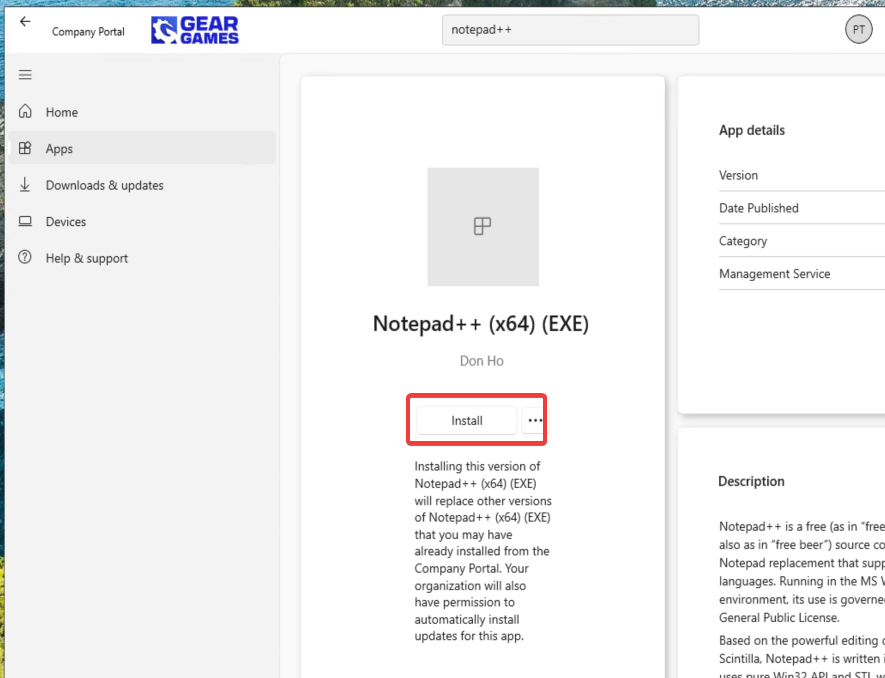
Option 1 – App added to Company Portal
- You will be notified and can install it directly.
- Steps:
- Open Company Portal
- Click Install
Option 2 – Approved installer
- If the app cannot be distributed via Company Portal:
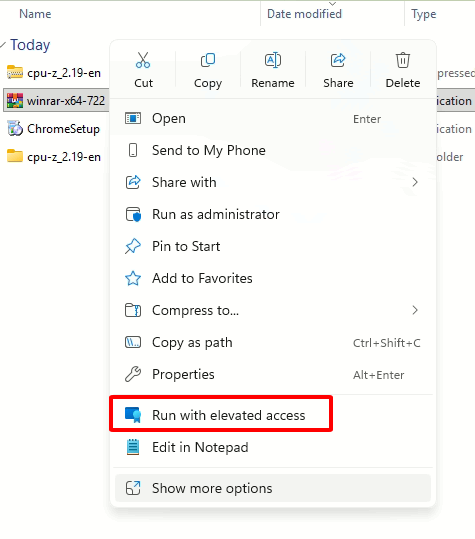
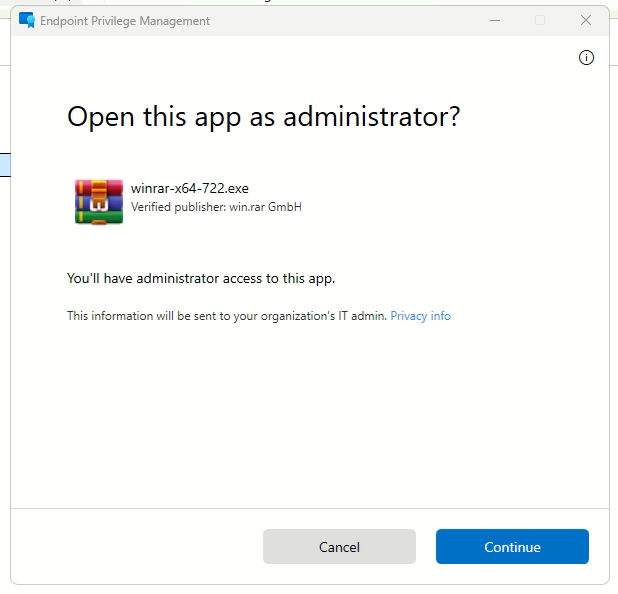
- You will install it using secure elevation.
- Steps:
- Run the installer
- Select Run with elevated access
- Enter the required justification
- Example justification: Installing approved QA tool – ticket #12345
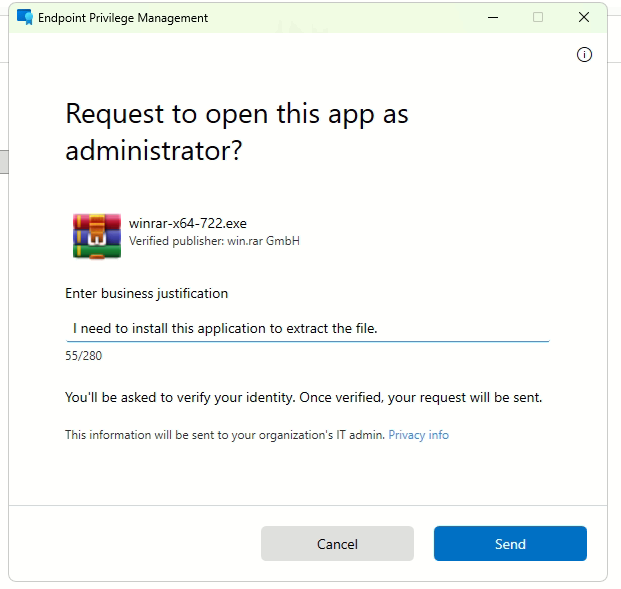
- After that, a notification will be sent to the user's device informing them of the result.
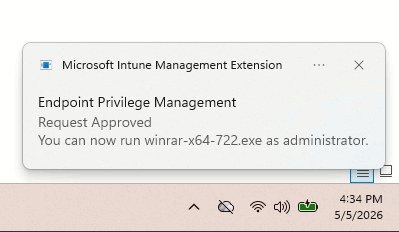
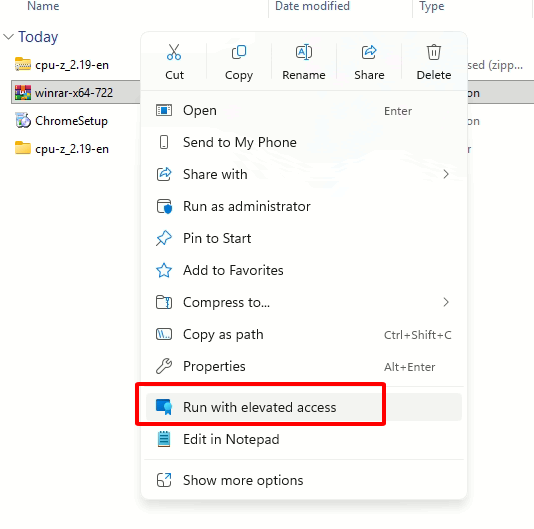
- If approved, the user just needs to right-click the application and select "Run with elevated access" one more time to complete the process.
8. What happens if software is not approved
- If the application fails security review:
- Installation will be blocked
- IT & Security team will explain the reason
- Alternatives may be suggested
- Reasons may include:
- Malware detected
- Unsafe or untrusted publisher
- Security vulnerabilities
- Duplicate existing tools
9. Special instructions for QA testers
- QA testers frequently install customer builds and test tools.
- Please follow these guidelines:
- Always submit customer installers for approval
- Include customer name and project
- Submit new versions only when necessary
- Do NOT bypass the process using personal devices
- This ensures customer software is handled safely.
10. Important security reminders
- Please do not attempt to bypass security controls by:
- Running unknown software from USB
- Renaming executables
- Installing tools from unofficial sources
- Using personal admin accounts
- These actions may trigger security alerts.
- All software must go through security verification.
11. Expected approval timeline
- Typical review time:
| Request type | Time |
|---|---|
| Common software | 1 business day |
| Customer software | 1-2 business days |
| Large or complex software | 2-3 business days |
- Urgent requests should be marked High Priority.
12. If you need help
- Contact: IT Help Desk
- Slack: Go to Assist App
- Jira: Follow this link**
- Provide the ticket number for faster support.