Apple Account Setup Guide
This guide is designed for QA team members who need to download test games from Apple's TestFlight platform.
Step 1: Request Apple Account via Jira Ticket
Before you can access TestFlight, you'll need an Apple Account created by the IT team.
You can read how to create Jira ticket here
-
Create a Jira ticket requesting an Apple Account setup
-
Include the following information:
- Request type: 1. Account Issues
- Summary: Create an Apple account
- Select the account service you need to support: Create New
- Pick the Office where you currently work
-
Submit the ticket and wait for IT team confirmation
Step 2: Receive Email with Apple Account Information
Once the IT team creates your account, you will receive an email from Apple containing:
- Username (usually your work email)
- Temporary password
Example
Apple Business Manager
Welcome, Doan Vuong Ngoc!
Use this sign-in information to set up your Managed Apple Account.
Your Managed Apple Account:
Your temporary password:
123456789
Step 3: Request Apple Developer Program Invitation
After receiving the email with account information above, you should:
- Contact QuanBP via Slack
- Request Apple Developer Program invitation for your Apple Account
- Provide your Apple ID email for the invitation
- Wait for the Apple Developer Program invitation to be sent to your email
Below is an example of Apple Developer Program invitation
Example:
Apple Developer
Hello Gear Games,
You're invited to join a development team, GEAR GAMES INC., in the Apple Developer Program so you can help develop, distribute, and manage their apps. As a member of this team, you'll have access to development resources, tools, and events. Please accept this invitation within three days.
If you have any questions, contact us.
Apple Developer Relations
Step 4: Login and Setup Password
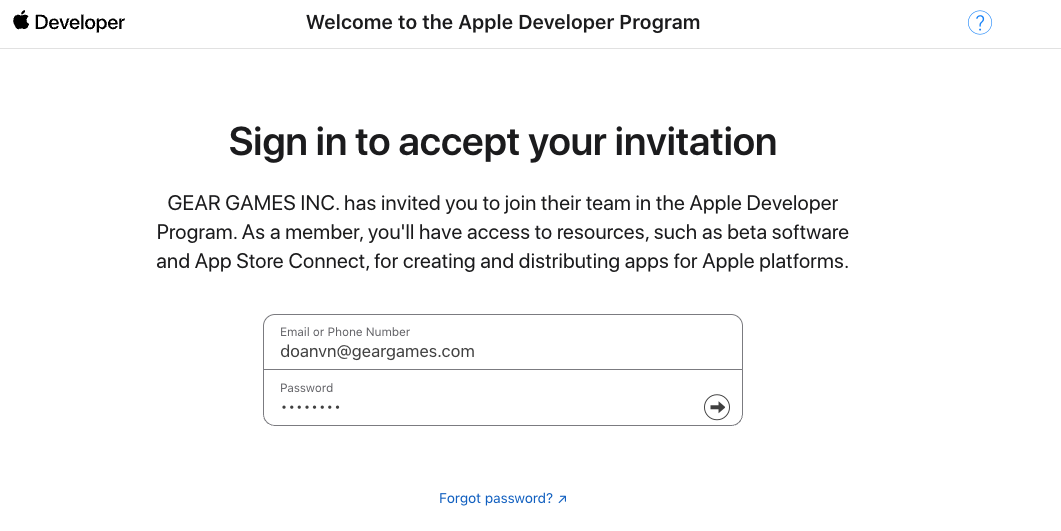
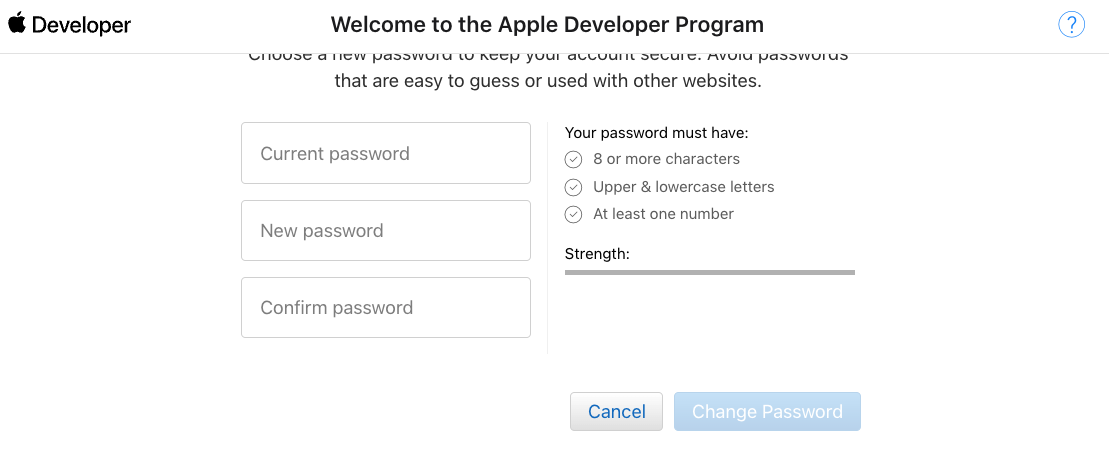
Click Accept invitation in the email above and start the process of setting up a new password for your first login
Password Change Requirement
Upon first login, Apple will require you to:
- Log in with the provided credentials
- Change the temporary password to a secure password of your choice
- Set up security questions (if prompted)
- Enable two-factor authentication (recommended)
Step 5: Request Apple TestFlight Invitation and Install TestFlight
- Contact QuanBP via Slack
- Request Apple TestFlight invitation for your Apple Account
- Provide your Apple ID email for the invitation
- Download TestFlight from the App Store on your iOS device
- Sign in with your Apple Account credentials
- Accept the TestFlight invitation from your email
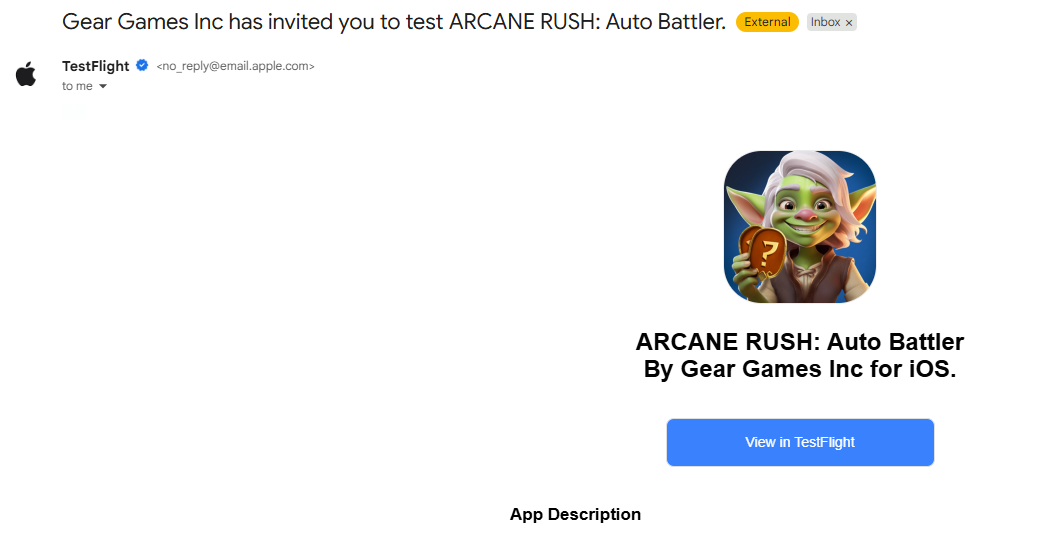
- Install test builds as they become available
Important Notes
- Keep your credentials secure - Do not share your Apple Account with others
- Report issues to the IT team if you encounter login problems
- Update your password regularly for security purposes
- Notify QuanBP if you need access to additional test applications
Troubleshooting
Can't log in to Apple Account:
- Verify you're using the correct email and password
- Check if two-factor authentication is required
- Contact IT support via Jira ticket
TestFlight invitation not received:
- Check your spam/junk folder
- Verify the email address with QuanBP
- Request a new invitation if needed
App not appearing in TestFlight:
- Ensure you accepted the specific app invitation
- Contact the development team for app availability
- Check with QuanBP for invitation status