Guide: Adjust Date and Time
How to Request Permission to Adjust Date and Time
By default, company devices sync time automatically. You cannot change the date or time yourself.
In special work cases, you can request temporary permission from IT.
Purpose: Learn how to request access and change the date/time on Windows or Mac when your work requires it.
Pick your operating system below:
Windows
Step 1: Understand the Default Setting
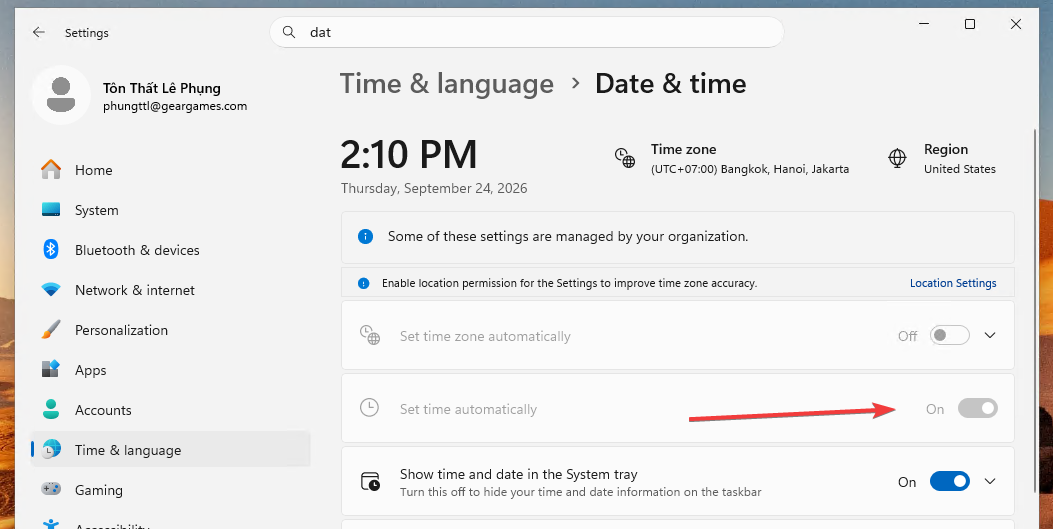
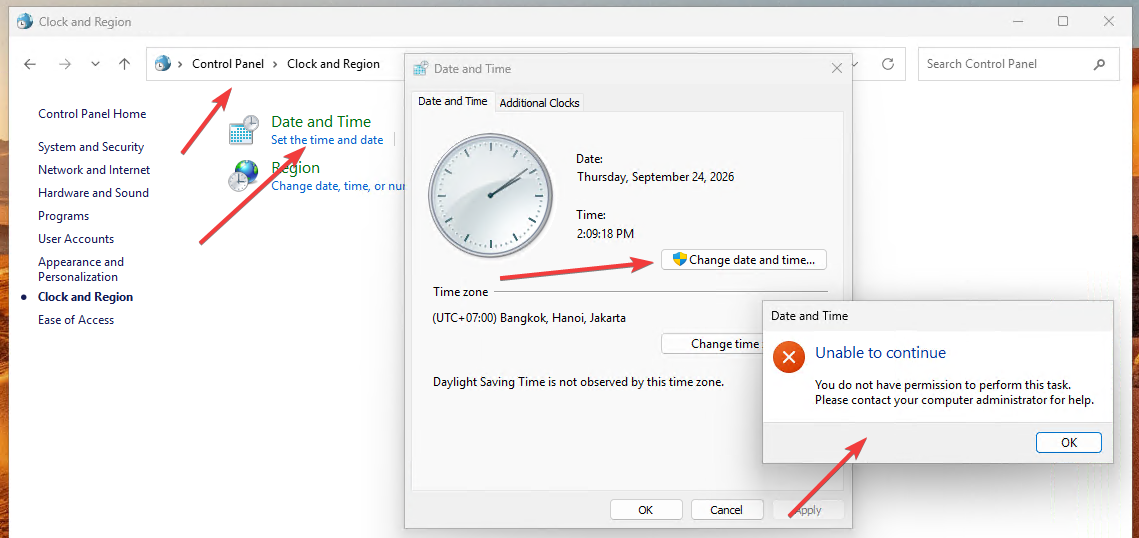
On Windows, your PC syncs time with the Domain Controller. If the time is wrong, the system corrects it automatically. You cannot change it yourself.
Step 2: Create a Request for IT
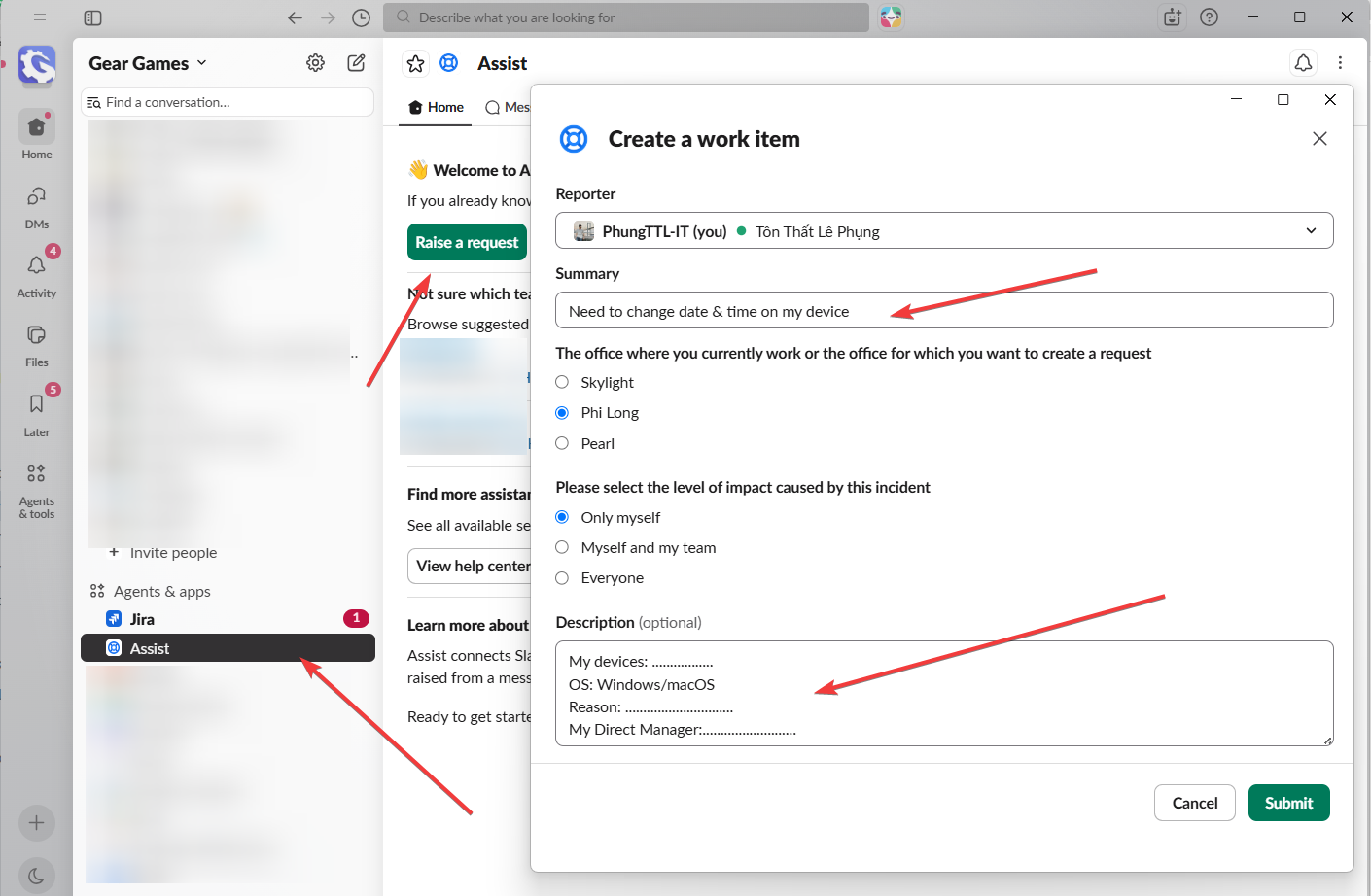
If you need to change the time for work, create a Jira request for IT.
Your manager must approve it first (Producer / PM / Director, depending on your project).
Please include:
- Serial number or device ID
- Operating system: Windows
- Manager
- Reason
- How long you need access (in days)
Not sure how to create a ticket? See the Jira ticket guide.
Step 3: Wait for IT to Update the Policy
After your request is approved, IT will update the device policy.
The change may take a short time to reach your PC. To apply it right away:
- Restart your computer, or
- Open Command Prompt and run:
gpupdate /force
Step 4: Change the Date and Time
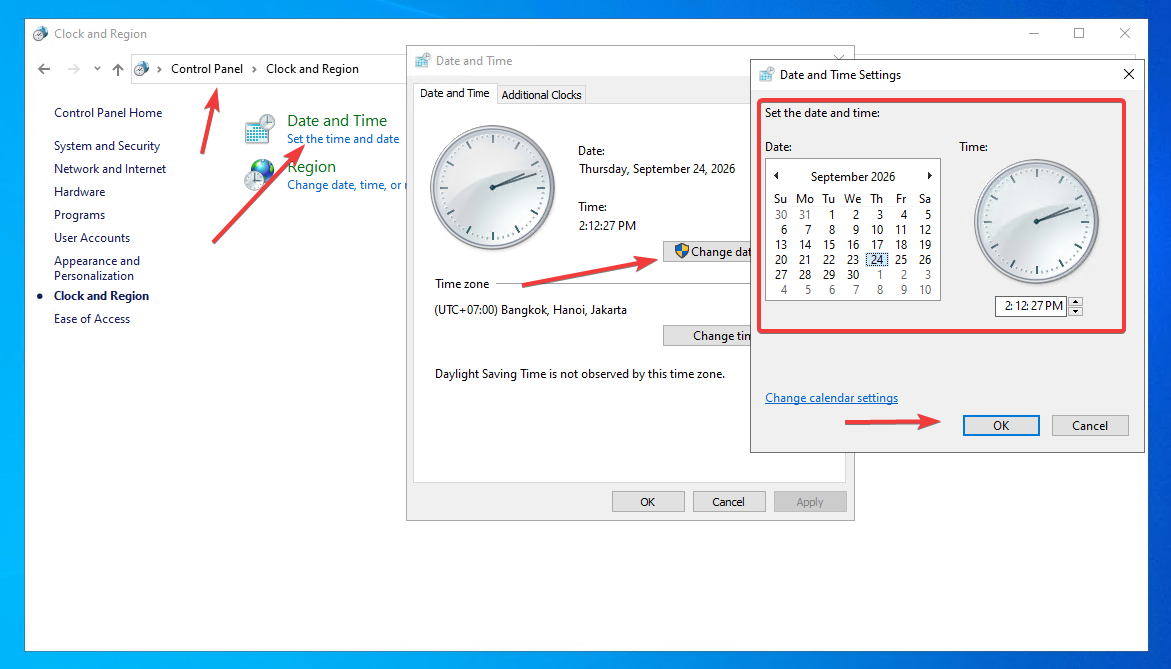
Go to:
Control Panel → Clock and Region → Date and Time → Change date and time
You cannot change the time in the Settings app. You must use Control Panel.
Important Notes (Windows)
Permission to change the time is temporary. It only lasts for the approved period.
When that period ends, IT will restore the security settings, and your PC will sync time automatically with the Domain Controller again.
If you still need access, create a new request.
macOS
Step 1: Understand the Default Setting
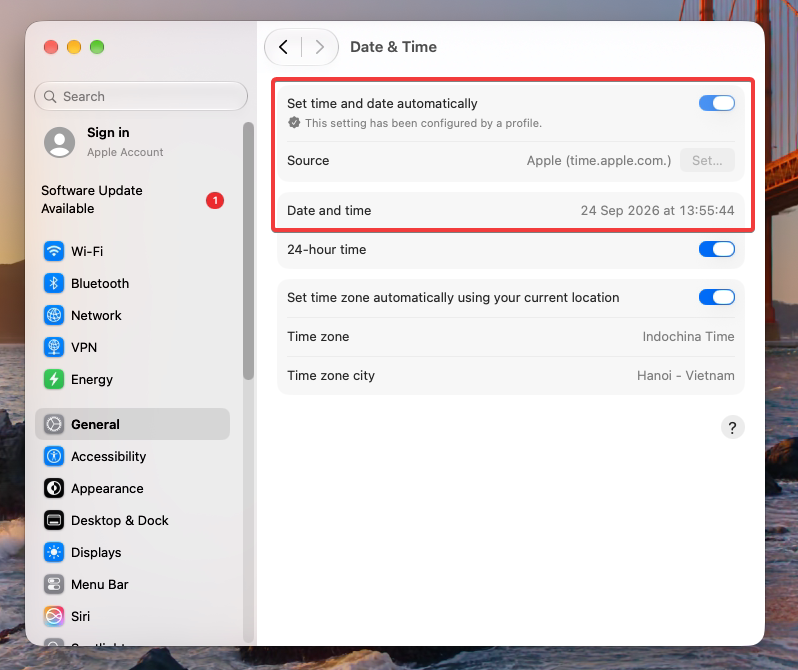
On Mac, your device syncs time with an NTP server. You cannot change the date or time yourself (as shown below).
Step 2: Create a Request for IT
If you need to change the time for work, create a Jira request for IT.
Your manager must approve it first (Producer / PM / Director, depending on your project).
Please include:
- Serial number or device ID
- Operating system: macOS
- Manager
- Reason
- How long you need access (in days)
Not sure how to create a ticket? See the Jira ticket guide.
Step 3: Wait for IT to Update the Policy
After your request is approved, IT will update the management system.
When that is done, continue with Step 4.
Step 4: Change the Date and Time
Go to:
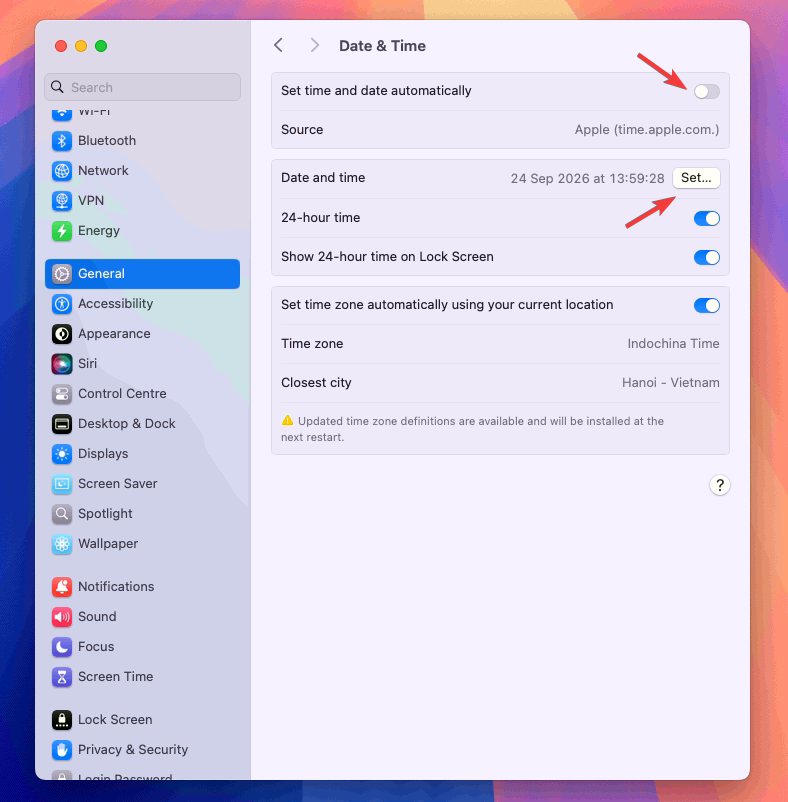
System Settings → General → Date & Time
- Turn off Set time and date automatically
- Set the date and time under Date and time
Important Notes (macOS)
Permission to change the time is temporary. It only lasts for the approved period.
When that period ends, IT will restore the security settings, and your Mac will sync time automatically with the NTP server again.
If you still need access, create a new request.
If you run into any issues, please contact the IT Helpdesk for help.